From Weeks to Minutes: Replacing Manual Audit Data Prep with Processing-Only Reports in Business Central
From Weeks to Minutes: Replacing Manual Audit Data Prep with Processing-Only Reports in Business Central
An external audit generates a lot of data requests. The auditors send a spreadsheet listing what they need, such as vendor master data, purchase orders, inventory movements, ledger entries and user permissions. Each line specifies the fields, the filters, the period and the layout.
Business Central holds all of this data. What it doesn’t give you is a quick way to get it out in exactly that shape.
The problem
Without a purpose-built tool, a single request looked like this:
Export one table or page to Excel.
Export a related table to another sheet.
Pull in descriptions, names and dimension values from yet another source.
Join everything with lookups, remove the columns nobody asked for, and rename headers to match the request.
Repeat for the next request, and hope the filters were applied the same way each time.
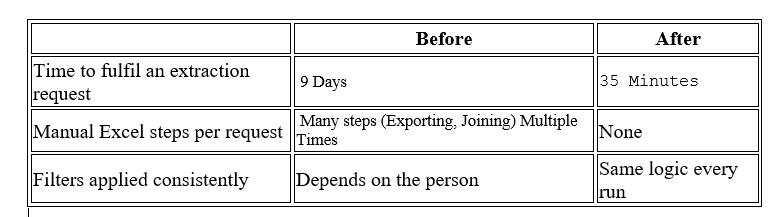
Multiply that across a long request list and the turnaround is days or weeks. It is also fragile. Two people exporting the same period can end up with different results, and a missed filter or a broken lookup can go unnoticed until the auditors ask questions.
The approach: put the joining and the rules inside the report
I moved the work into AL, using processing-only reports. These reports have no printed layout. They exist to run logic and produce output, and they still give you a request page for filters. That makes them a good fit for extraction.
The user experience became:
Open the report → set filters → click OK → download the Excel file
Request page (filters) → Report logic (read, join, apply audit rules) → Excel file (auditor's layout)
A minimal report definition looks like this:
report 50100 "Audit Extract G/L Entries"
{
Caption = 'Audit - Extract G/L Entries';
ApplicationArea = All;
UsageCategory = ReportsAndAnalysis;
ProcessingOnly = true;
UseRequestPage = true;
// dataset, request page and export logic follow
}UsageCategory = ReportsAndAnalysis makes the report searchable, so users find it like any other report. The auditors’ own field list became my specification, so the headers and column order in the output match what was requested.
What I built
I built two groups of reports.
Targeted extracts, one per audit request. These cover vendor and item master data, open and historical purchase order portfolios, inventory reports and movements, general ledger extracts for selected expense accounts, posted purchase invoices with their lines, vendor ledger entries and permission set details. The joins that used to happen in Excel now happen in code, such as resolving user names, looking up cost centres through dimension sets, and calculating “received not invoiced” quantities.
A privileged-user review suite, ten reports on one shared engine. A second request set asked for activity by privileged users across ledger entries, vendors, vendor bank accounts, receipts, invoices and the change log. These ten reports share a single helper codeunit, so I wrote the hard parts once.
The design decisions that made it work
1. Audit criteria written once, as code.
The auditors’ criteria for master data were “created or modified by the selected users, within the period”. I turned that into one function that every report calls:
procedure SystemFieldsInScope(CreatedBy: Guid; ModifiedBy: Guid;
CreatedAt: DateTime; ModifiedAt: DateTime): Boolean
begin
if not (IsUserSelected(CreatedBy) or IsUserSelected(ModifiedBy)) then
exit(false);
exit(InPeriod(CreatedAt) or InPeriod(ModifiedAt));
end;
If the rule changes, I change it in one place, and every extract follows.
2. User selection as a first-class option.
A small enum gives three choices: privileged users, a custom user filter, or all users. For the first option, the helper reads the Access Control table for the SUPER role, builds a temporary user list and a safely quoted filter string. Nobody has to maintain a list by hand.
3. Multi-company in a single run.
Group audits span several entities. Each report loops over the Company table and switches company for each pass, so one run with a wildcard company filter produces one file, with a Company column that identifies each row’s source.
GLEntry.ChangeCompany(CompanyNameToExport);
GLEntry.SetRange("Posting Date", DateFrom, DateTo);
4. Filters belong to the user, not the developer.
Dates, document numbers, accounts and vendors are request-page fields. The reports remember the user’s last values, and a different date range or document filter doesn’t need a new deployment.
5. The auditor’s list as the input.
For the expense-account extract, the report can read the auditors’ own account list from an uploaded Excel sheet and turn it into a filter. The auditor’s list drives the report, so nobody retypes it.
6. Guardrails over silent failure.
The shared helper validates the date range, stops with a clear message if the export would exceed Excel’s row limit, and tells the user when no data matches instead of producing an empty file. It also caches user-name lookups so the same user isn’t fetched repeatedly in a large export.
7. Consistent formatting.
Wrappers around the Excel Buffer table keep dates, amounts and headers formatted identically across every report. Files from different reports look like they came from the same system, because they did.
Security: self-service without handing out the keys
An extraction tool that reads this much data needs proper control. I packaged the reports with a dedicated permission set. It grants execute rights on the reports and the helper codeunit, and read-only access to the specific tables they use. No write access, and no access at all unless the permission set is assigned. This also made the tool easier to explain to auditors: they could see exactly who could extract what.
The result